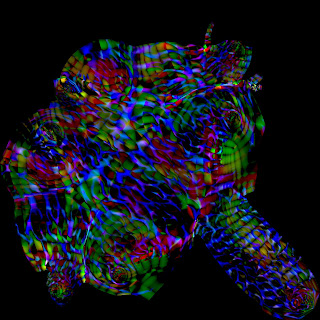
The aim of this post is to figure out the art direction I'm going to go with and here's the final result (for now) that I plan to use for the main texture, the white represents emissive which will be used as a mask for the VFX I completed in unreal engine.
I started initially with a couple basic rock sculpts and layered them to see what that might look like. I also tried out some brushes I found online and accidentally made cookies:
I then started looking into making lava rock material and just my luck - there were a bunch of tutorials on how to do this in blender - small problem, I don't think you can export material maps you've made in blender. Also when I clumped the rocks together and put this material on... Looked like very unhealthy poop haha!
This served as a great base to start experimenting with what I want my rock textures to look like! Taking into account how lava tunnels form, I want it to look like there's layers of solidified lava with remnants of ebbing flow patterning the walls.
The sculpts will be a canvas for my textures. The workflow for my sculpts started with the clay build up brush to find the main shapes, I then used the trim dynamic brush to flatten it which created some cracks and then I used the trim smooth border brush, (found in the lightbox tab > trim folder) to create better edges and some more cracks. I also occasionally used the clip curve tool to create clean slices and cut into the edge of the stone wall.
In blender, I then used a lattice to create some curve variations.
Ready to decimate, UV map, bake and bring into unreal engine.
There are 2 main ways to do stylised wood, a material that could go on a plane or sculpting individual planks and baking it onto a low poly mesh. For this exercise I'm doing the latter.
There are loads of videos on sculpting stylised wood on youtube and here are some great free resources I came across for sculpting stylised wood:
A big difference I've noticed between modelling for games and modelling for film is, for games you have to optimise so much more - optimisation is king. Because games are played in real time, the engines have to be able to calculate the scene every moment otherwise you get lagging.
So here's the wood I sculpted! I figured style-wise less is more with these planks and didn't do loads of sculpting.
I figured now I zremesh to reduce topology and export it into Maya to UV map, ready for baking. However, I came across a few obstacles and had to decide what was a better workflow and how to optimise most.
ZRemeshing comes with a few cons:
1. It doesn't give you nice topology to work with when UV mapping by hand.Edge selection is a lot more complicated and lines drift into one another like a spiral rather than a loop. Also edges don't tend to meet corner to corner like as if you had modelled or hand retopoed it.
Solution: Retopologising by hand is the best solution. But if you really don’t want too, I found ZBrush's auto unwrap to give better results than Maya's auto, it's not perfect but you can easily use Maya's UV tools to improve where the cut lines are and straighten UVs.
2. ZRemeshing softens hard edges.
Problem solving: I thought about creating a displacement map, but that would be completely unnecessary and complicate things if anything, not to mention it would give the engine more to calculate, not less.
* Something new I've learned about optimising textures is that you can pack 3 texture maps into 1 using the RGB channels in Photoshop. I've come across a few names this goes by: ORM (Occlusion in Red, Roughness in Green and Metal in Blue) or occlusion maps or RGB maps or texture channel packing.
Solution: I returned to the block mesh in Maya with the high poly sculpt as a reference and tweaked the low poly by adding in some of the edge cuts I put in when high poly sculpting. This way I could keep the poly count very low AND have the edge cuts actually there (not faked in a normal map). It's a tiny detail but I feel it's important to have to give the planks some sort of character instead of looking all the same. Also this saves time retopologising from scratch.
3. You can't decimate and remesh. For a plank of wood you would only want topology mainly on the edges and not in the middle which decimation would do with messy topology. Zremeshing puts topology all over, not only where it's needed. For a rock or a character's head, zremeshing is perfect because you would want topology all over to hold its form.
Solution to problem 3 was same as problem 2.
I came across another problem whilst baking the normal map, the process of baking was successful but I didn't like the results in some areas which are pretty self explanatory below.
Problem Solving: Initially I brought the baked normal map into photoshop to paint. This was very difficult as I couldn't see how exactly this would look on the model. The process of painting, exporting, updating felt very long and tedious.
Solution: I bakedthe normal map in substance painter but then remove it from the Mesh Maps window where it automatically places it (under Texture Set Settings). Instead create a fill layer and add a mask, turn off all the channels except normal, and plug in the normal map you baked there instead. Now you can mask out the undesired areas of the normal map.
So that's the journey I had learning stylised wood!
To summarise the process:
Step 1: Low poly block mesh in Maya.
Step 2: Sculpt high poly details in ZBrush
Step 3: Add details if necessary to the block mesh edges depending on sculpt.
Step 4: UV map and add ID colours if necessary.
Step 5: Bake the normal and ID map in substance painter.
Step 7: Texture in substance.
If I were doing something like a rock, I would go straight in with the high poly and then retopologise it to create the low poly.
This post is an additional test/learning lesson from my ZBrush cat series I started last year in which I introduced myself to basic XGEN and Maya's retopology tools, I also experimented with sculpting stylised fur and general displacement maps.
The original intention when starting out was I wanted to create a vector displacement map that projected the long fur model onto the no-fur cat sculpt that was retopologised. I struggled with this for a while and was something that was picked and dropped a few times. But finally, FINALLY, I've figured it out.
When working with a render engine, the less poly count it has to calculate the faster it will render. Retopologising the no-fur cat sculpt lowers that poly count drastically and is what should be done if this were an asset for a scene, (alongside UV mapping of course). But for this learning experiment I haven't because a) the same logic/technique applied should work on something that's retopologised too and b) in my screenshots above, that retopology is probably still too high a poly count than what it needs to be. I have since then discovered ZBrush's zremesher that creates a good starting point for retopology.
Ignoring the no-fur cat from this point on. Looking at vector map generation you need a low sub division level and a high one, this is so the vector map can calculate how to displace the low resolution mesh to look like the high resolution mesh without the hours of render time.
Throughout sculpting, clever me, repeatedly deleted all lower sub division levels, "Nice one, Paris!".
Problem 1: How do I get those lower subdivision levels back?
You duplicate your high resolution mesh and you use the ZRemesher to drastically lower your poly count, making the left image look like the right.
You then build up those sub division levels, keep dividing until the low poly mesh has round about the same poly count as the high resolution mesh. Then you project the details from the high poly mesh onto the low poly's highest sub division level.
The short video below demonstrates this in more detail:
After that I exported my model on its lowest subdivision and imported it into Maya, (for this practice I auto unwrapped my UVs in ZBrush).
Now this is where the real struggle kicked in.
Problem 2: Getting the right Vector Displacement Map (VDM) to work.
Turns out VDMs need to be mostly green. The first dozen attempts I kept getting results similar to this... (I even jumped ship at one point and tried using height and normals maps... Nope - don't do that.)
In the end, this was the winning map and result was...
So how do you make and export the map correctly from ZBrush and use it with Maya? Check out the screenshots below the video or watch the video I used.
Just in case for some reason this video gets taken down, I've screenshotted the settings below.
Zbrush:
ZBrush kinda has its map settings all over the place, in the ZPlugin there are 2 sub categories for Vector Displacement under the Multi Map Exporter, one is "Vector Displacement" the other is couple options below that and is labelled "Vector Disp Map". There are also settings hidden under the "File names" button which may need changing (right image).
Another area to find more settings is on the right side, scroll down to the bottom where it says "Vector Displacement Map" and also change some settings under "Export" tab.
When you're finished with the settings, go back to the Multi Map Exporter in ZPlugin and press Create All Maps.
From the 19th - 25th, Art Heroes hosted a Halloween themed Zbrush character challenge where entrants created their own original monster characters. I decided to join in the challenge and push my Zbrush skills to create my first character solely with Zbrush for the modelling - no Maya. I used substance painter for texturing.
For the first 5 days of the challenge, they hosted a nightly livestream lesson in Zbrush.
I am shocked by what I created because it's very unlike me to create something so repulsive... I loved it! Meet Benjamin the Zombie Knight, adapted from my uni character design project "The Nervous Knight".
Sculpted in Zbrush. Textured with Substance Painter. Rendered with IRAY.
Idea:
The story I created for The Nervous Knight was that he was anti-heroic - scrawny and clumsy who survived only on dumb luck. (You can view the production bible HERE). In this adaptation his dumb luck ran out and he died. Many eras passed and a new one was sparked by a pandemic - the zombie virus. Overnight, the dead crawled out of their graves and began to walk the Earth, feasting on the living. Zombie Knight is how I imagine Benjamin looking once he crawled out of his grave - and after he had his first meal. I also imagine the virus would have regenerated him enough (wearing what he wore when he died) to be substantial enough on the surface.
Work in Progess Images Below:
Days 1-3: Head and Body Sketching
Day 4&5: Adding Details and Imperfections
Days 6&7: Texturing, Ground Creation, Rendering and Compositing